
TwinCity
A Collaborative Mixed Reality Digital Twin Platform
TwinCity is a Mixed Reality simulation platform built by four master's students as part of the course Design for Complex and Dynamic Contexts (DCDC) at Stockholm University in Spring 2025. The goal was to develop a collaborative emergency response tool using a 3D digital twin city placed on a physical table, enabling intuitive and real-time spatial planning.
Users can rotate, annotate, and explore a photorealistic 3D map using hand gestures via Meta Quest headsets. Multi-user collaboration is supported through Shared Spatial Anchors (SSA) and Photon Fusion networking, allowing synchronized interaction from multiple devices in the same physical space.
Logo poster
1. Introduction
TwinCity integrates Unity, Cesium for Unity, and Google Photorealistic 3D Tiles to create an interactive digital twin of Stockholm. Designed as a simulation platform for emergency planning and cross-department collaboration, it helps users simulate disasters (e.g. flooding), assess infrastructure impact, and coordinate interventions in a shared 3D space.
Unlike traditional 2D maps or isolated systems, TwinCity offers:
- Natural MR interaction with the map
- Real-time annotations and markers
- Multi-user co-location via SSA
- Simulation of dynamic elements such as rising water levels
This enables faster, more informed decision-making in critical scenarios like climate adaptation planning and disaster response.
2. Design Process
The project followed an iterative process based on Design Thinking:
-
Brainstorming
Defined our problem space, user roles, pain points, and technical scope. -
Prototyping
Built in Unity 6 with Cesium 3D Tiles for photorealistic city rendering. UI, markers, and map controls implemented using Meta XR SDK. -
Testing & Feedback
Tested multi-user flow, interaction precision, and gesture clarity on Meta Quest 2 & 3. Iterated based on user feedback.
2.1. Brainstorming
The brainstorming phase involved generating and refining the whole idea for our project to establish the objectives, scope, and potential challenges. Initially, we defined our problem statement, user personas, and user journey. In the brainstorming stage, we discussed all potential problems by disasters and also planned our project process in detail. Meanwhile, we explained our problem statement, why our project is necessary for urban planners and designers to be effective in their work, and why our project helps them to simulate and understand situations. With the help of digital twin technology, our project aims to reduce resources and save energy.
Problem statement
Rapid urbanization and climate change are increasing the frequency and severity of urban disasters (floods, fires, power outages). Current emergency response systems rely on static 2D maps, siloed data, and slow manual coordination, leading to delayed decisions due to fragmented information and inefficient resource allocation. Today, existing tools fail to address the challenges that disasters bring in our lives, due to a lack of real-time 3D visualization, forcing responders to mentally translate 2D maps into physical spaces. In addition, operation in isolation with emergency teams, city planners, and utilities incompatible systems. Many tools depend on historical data, ignoring live IoT sensor input (e.g., weather, traffic, structural sensors), and also do not offer collaborative simulation, making it impossible to test strategies before implementation.
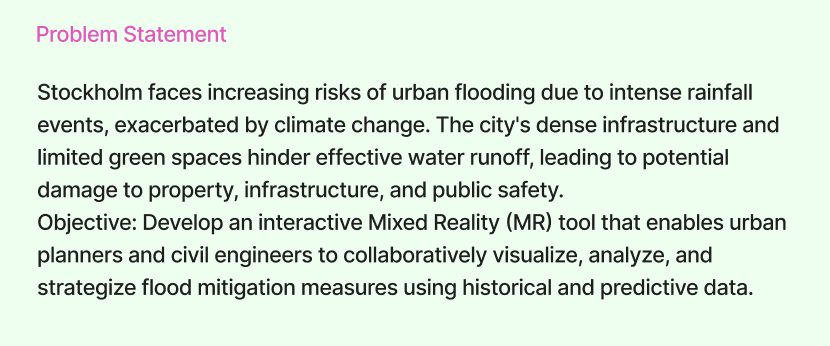
Stockholm is an urban city that may face increasing risk or disaster due to climate change. The city's dense infrastructure and limited green spaces hinder effective water runoff, leading to potential damage to property, infrastructure, and public safety.
Purpose
Develop an interactive Mixed Reality (MR) tool that enables different teams to collaboratively visualize, analyze, and strategize flood mitigation by using historical and predictive data. Collaborate remotely wherever the users are, can maximize work efficiency and save energy. Also using real-time data to simulate and predict disaster situations helps to reduce resources.
2.2. User Personas
TwinCity serves diverse stakeholders with unique roles and technical requirements. Based on research and observations, we defined our users in several groups. However, we focused on urban planner and emergency response coordinator.
Urban Planner requires advanced tools for import/export city models in IFC/CityGML formats. To simulate long-term climate impacts (e.g., rising sea levels on infrastructure) and get API access to pull municipal GIS data (parcels, utility networks). However, urban planners are limited to manual conversion between 3D modeling tools and emergency systems and inability to stress-test designs against disaster scenarios.
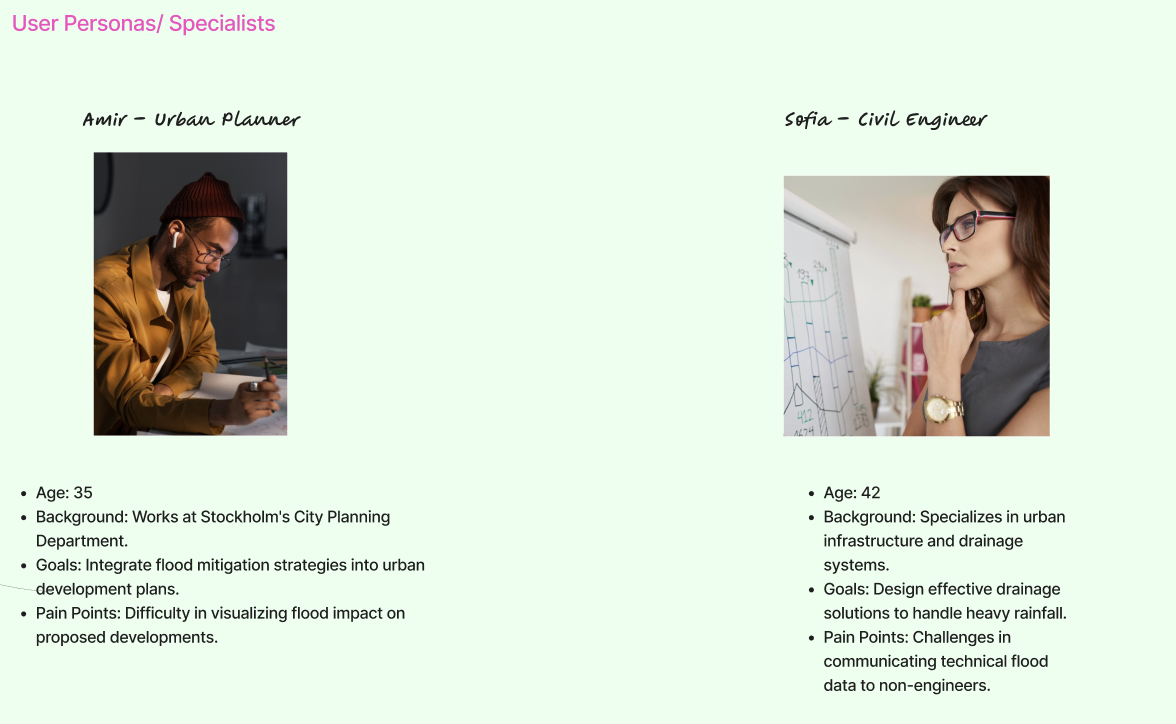
Emergency Response Coordinators have a responsibility to lead disaster simulations, allocate resources, and coordinate multi-agency efforts. The key needs of those people are real-time visualization of hazards (floods, fires) with 3D spatial context. Also, tools to place virtual markers (e.g., evacuation routes, resource depots) and Multi-user collaboration to direct field teams via shared annotations. However, the limitations of this group of people have siloed communication between police/fire/medical teams and static 2D maps lacking live data integration.
2.3. User Journey
TwinCity is designed to support multi-role collaboration during urban planning and emergency response. Below are the key journeys for user planners:
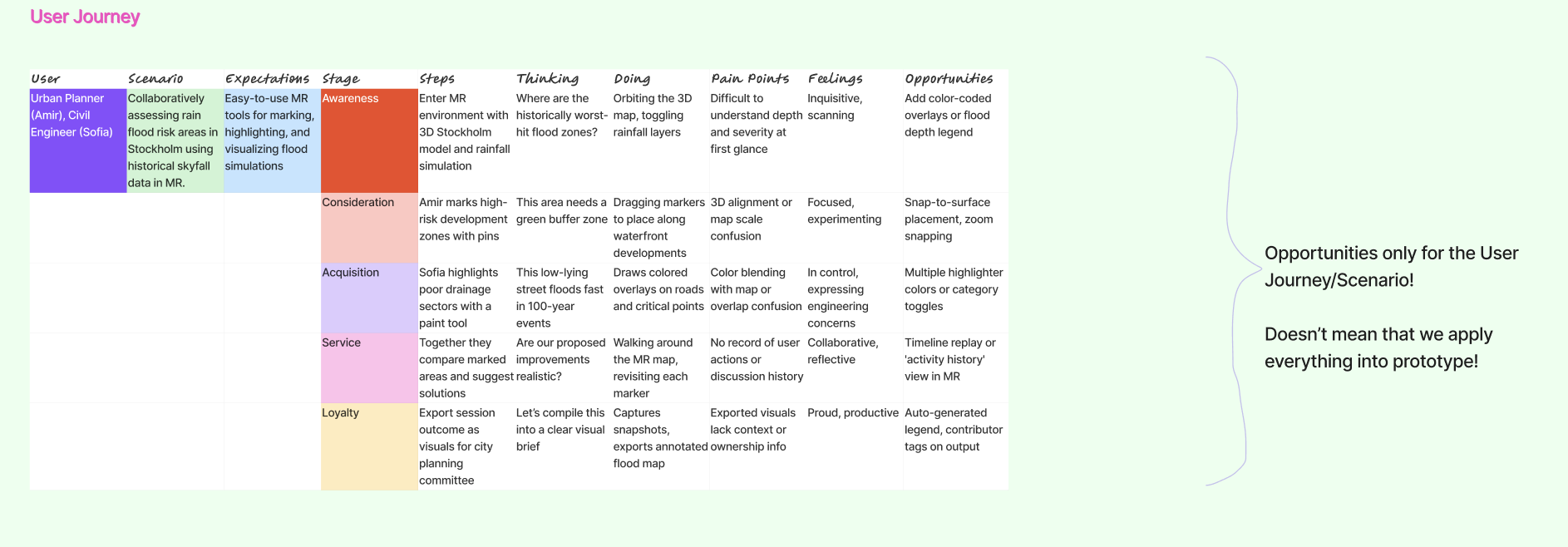
Pain points addressed in the Emergency Response Coordinators' journey are to replace manual radio updates with synchronized virtual commands and eliminate guesswork in resource allocation. Meanwhile, the pain points addressed in the Urban planners' journey are to replace months of physical modeling with instant simulations and avoid costly construction errors.
2.4. Storyboard
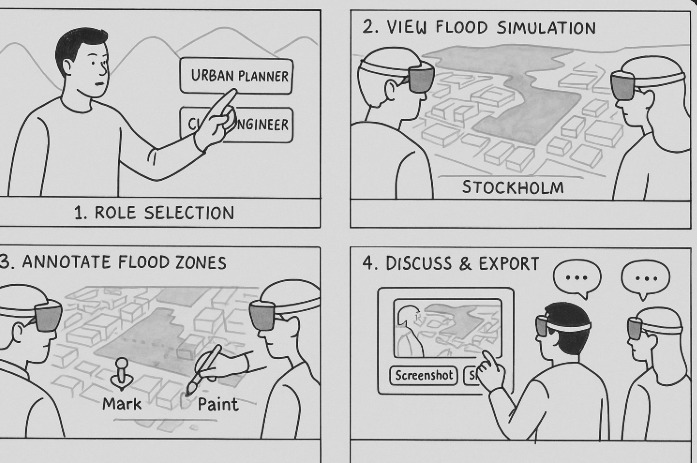
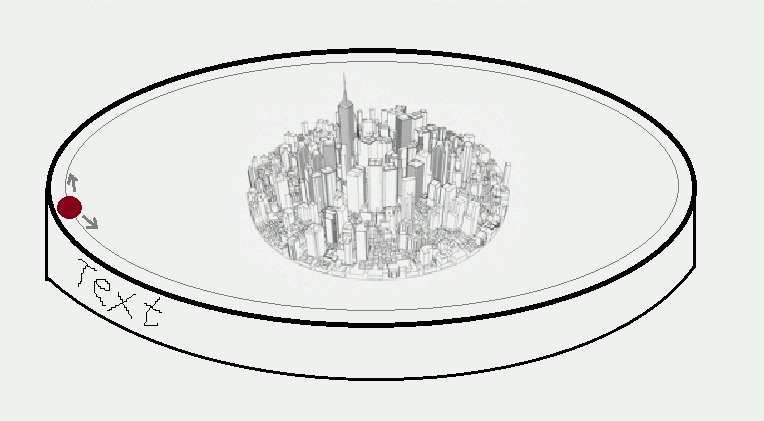
Our storyboard showed that our project journey began with role selection, view simulation, annotating zones, discussion, and export. In the design process, we also have drawn a sketch of our prototype. The purpose of this sketch is to help us to understand our development process better.
2.5. Prototypes
Visual representations and preliminary models are essential for project development. The project experience is in a mixed reality (MR) environment where users can interect with both virtual and physical worlds. Birtual models replicate real-world objects, ensuring fluid interaction. The experience is also multi-user, permitting participants to visualize, alter configurations, and observe others' changes in real-time.
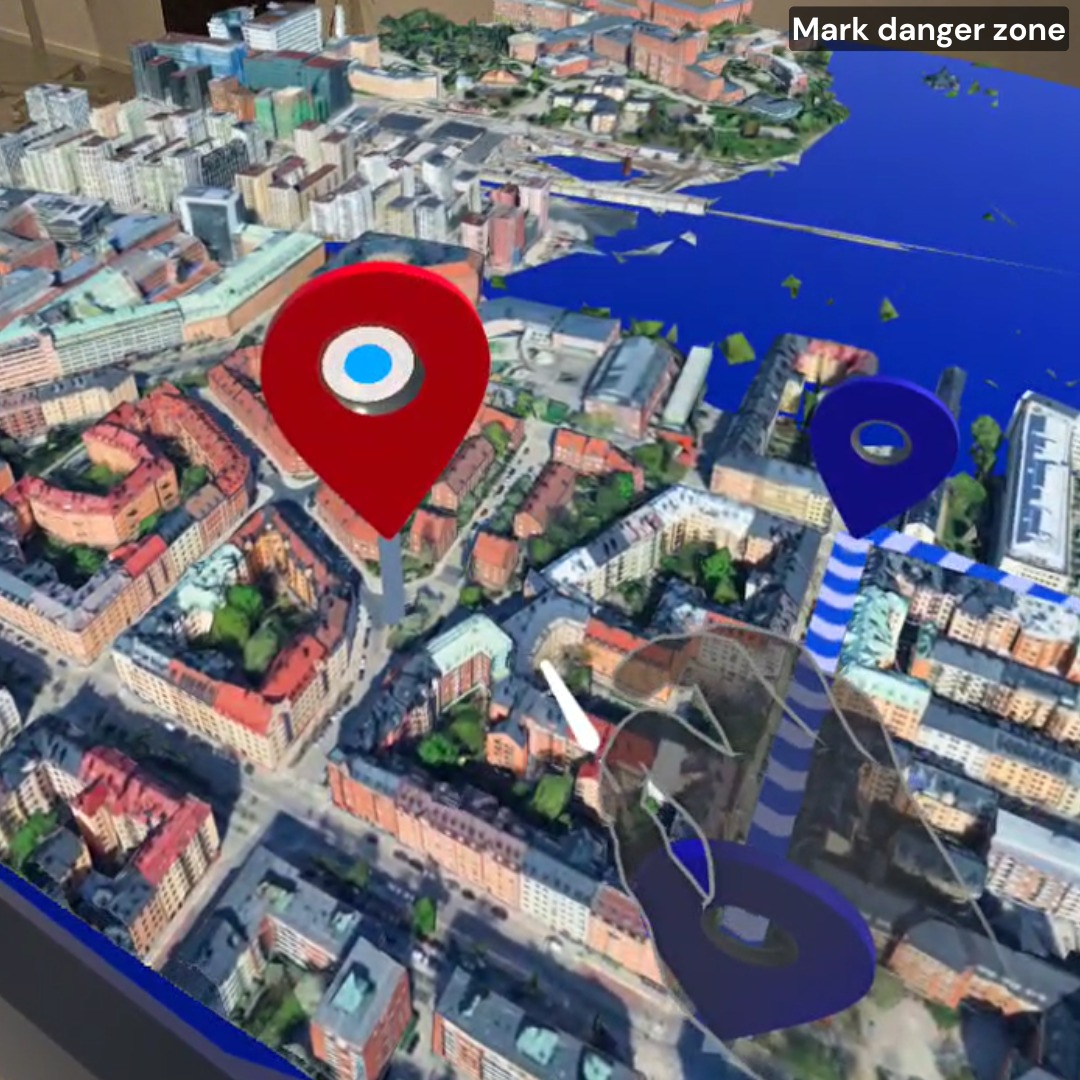
In our demo prototypes, we developed two buttons for generating the yellow and red markers. Different markers have different meanings. For example, our picture here shows the red marker. By clearly labeling danger zones, we ensure Instant awareness of potential hazards.
The marker picture highlights critical safety zones in the prototype. Safety is a shared responsibility.
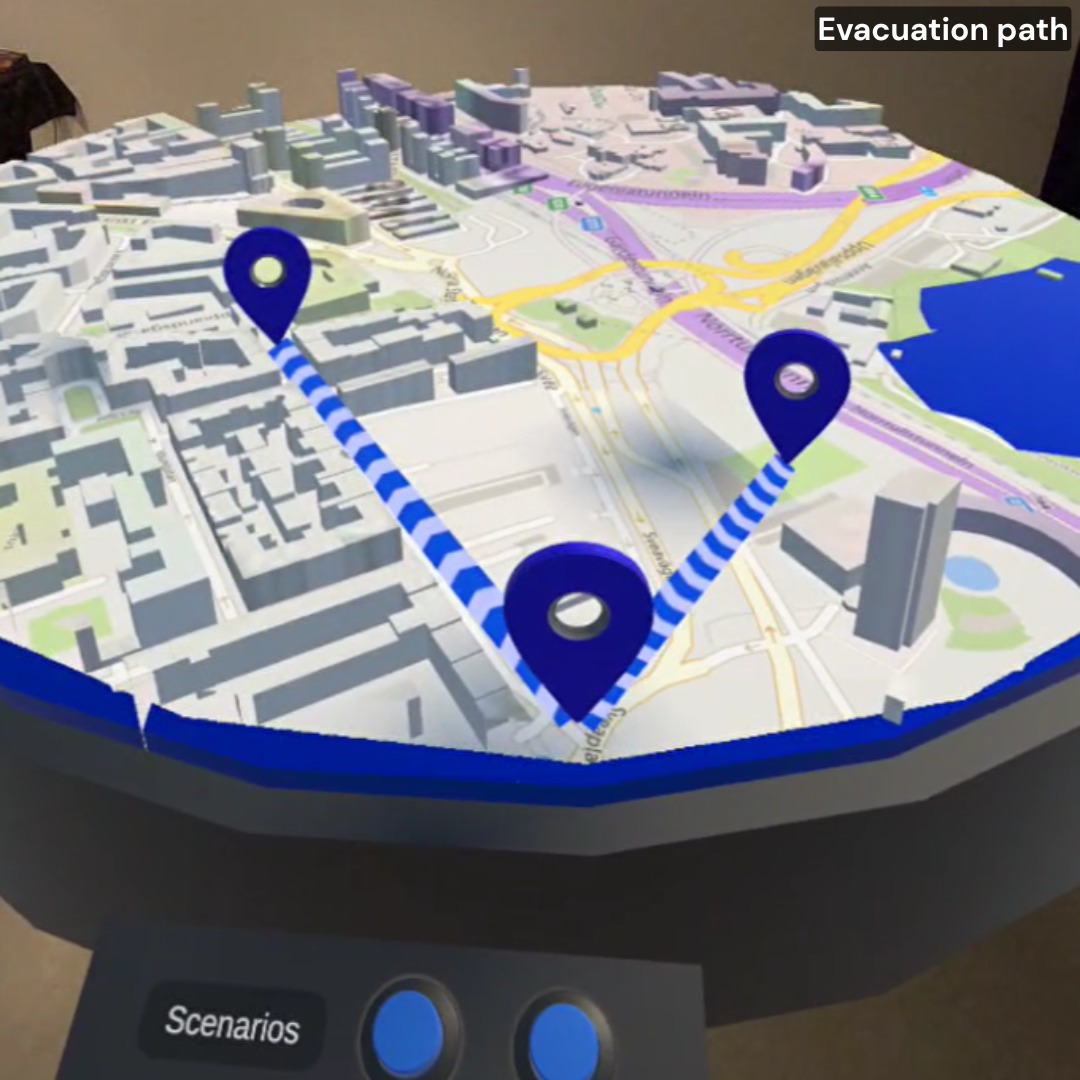
The lines in our prototype are critical for:
- Measuring exact distances between markers (e.g., safety zones, hazards). (to be implemented)
- Marking real-world scenarios, like evacuation routes or spatial planning.
- Enabling collaborative adjustments—teams can tweak paths and instantly gauge impact.
However, clear boundaries mean smarter decisions in the real world.
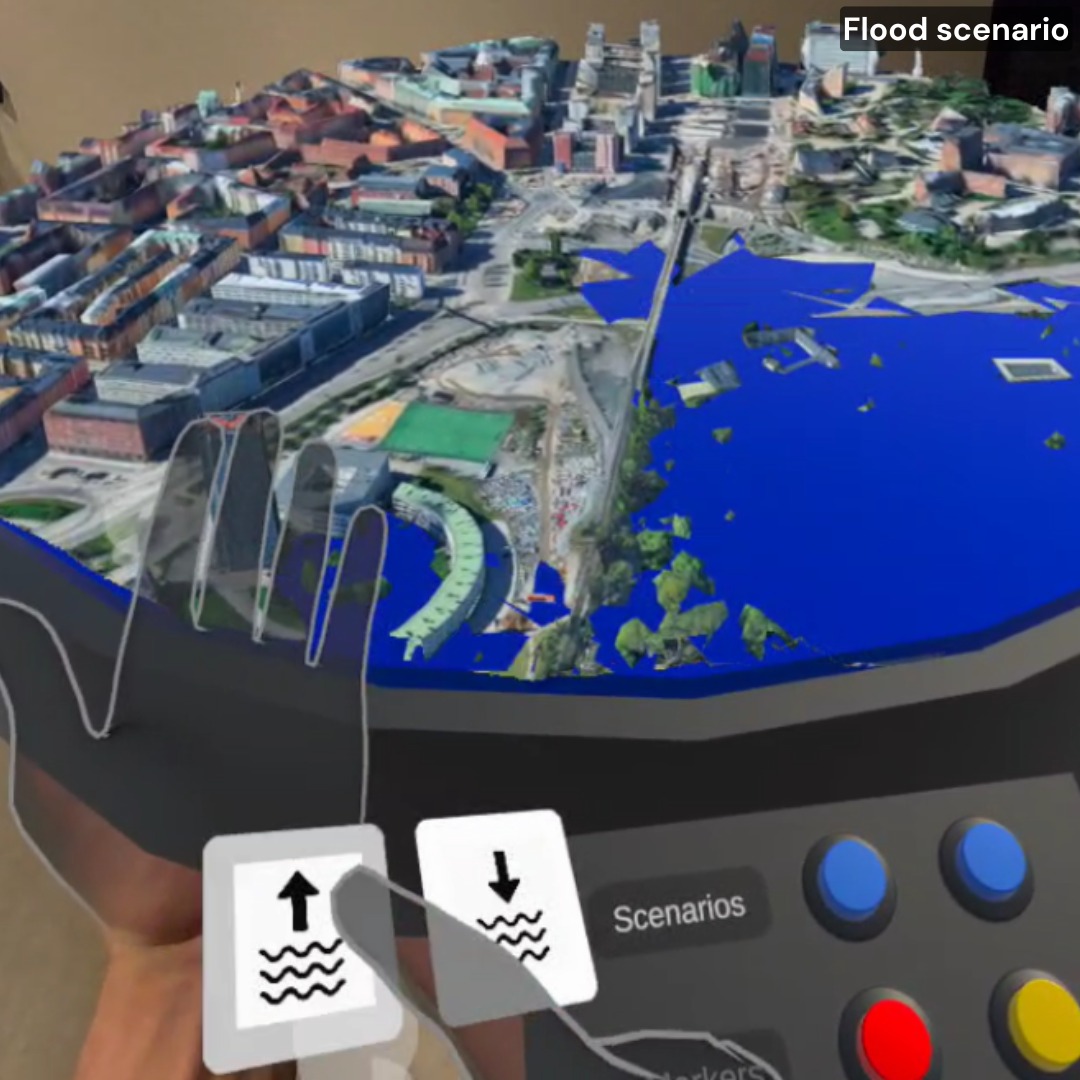
The dynamic water-level simulation bridges virtual and physical worlds by:
- Accurately replicating flood scenarios with adjustable water levels (rising/falling).
- Enabling risk assessment, and testing infrastructure resilience or evacuation plans under realistic conditions.
- Providing instant visual feedback as variables change, empowering data-driven decisions.
In addition,simulate to mitigate before reality forces your hand. This work improves to ensure the feasibility and reliability of our system.
2.6. Testing
The TwinCity implementation followed an iterative testing protocol, with user experience validation embedded in each development cycle. The study assessed user control functionality by validating participants' capacity to execute system interactions and perceive corresponding changes in the virtual environment.
The user interface was systematically evaluated through structured usability testing, incorporating both qualitative feedback and observational data to validate design effectiveness. This assessment confirmed that the interface met core usability requirements for intuitiveness and information clarity across user groups.
Initial testing yielded significant behavioral insights that extended beyond basic functional validation. Participant feedback specifically identified opportunities to enhance user engagement through more dynamic interaction paradigms, and optimize information architecture for faster task completion.
3. System description
TwinCity is an advanced Mixed Reality (MR) Digital Twin platform that creates a real-time, interactive 3D replica of urban environments. Designed for emergency response, infrastructure planning, and climate adaptation, it bridges the physical and digital worlds by integrating data with high-fidelity 3D city models (photorealistic rendering). Also it allows for the integration of IoT sensor data (weather, traffic, structural health) to further improve the data-driven decision-making.
3.1. Features and fuctionalities
- Immersive Virtual Environment: Participants are presented with a realistic 3D map in a location of their choosing. The high-fidelity map allows for flood-simulations and marker functionalities enable the users to mark observations and thus improve collaboration.
- Collaborative Multi-User Experience: The virtual environment fosters collaboration. Multiple users can interact with each other in real-time, observing one another's actions and the impact of changes within the simulation.
- Interactive Control via Poke and Ray Gestures: Users can leverage intuitive poke and ray gestures to control buttons and the map within the virtual environment.
3.2. Setting Up the Development Environment:
This guide outlines the installation process for the TwinCity project, designed for users with basic knowledge of Unity,C# and verified Meta developer accounts.
- Software and Hardware Requirements:
Software:
Unity Hub (latest stable version recommended) Unity 6 (6000.1.2f1) Additional libraries for Unity (details provided in later steps) Meta developer account (verified) Meta Quest Link Meta Quest Developer Hub Photon account and App id for your application to be connected over network. This is mandatory so that multi-user experience is facilitated.
Hardware:
Computer with Unity 6 installed (6000.1.2f1) Meta Quest VR headset (Quest 3 or Quest 2 Pro)
- Configuring the Development Environment:
Configuring Meta Quest VR Headset:
(Optional) If you could be the admin of the VR headset, things might get easier Follow the official Meta Quest setup guide to ensure your VR headset is properly connected and configured for development purposes with your verified Meta developer account. Create an Organization from this link and add the users who would use the project. Ensure that there should be atleast two users one being the host and the other being the client.
Unity Project from GitHub:
You will need the GitHub repository URL for the TwinCity project files. Open a web browser and navigate to the provided GitHub URL. Click the green "Code" button and then select "Download ZIP". This will download a compressed file containing the project files. Extract the downloaded ZIP file to a convenient location on your computer. Launch Unity from Unity Hub. In Unity, go to File > Open Project. Navigate to the extracted folder containing the TwinCity project files and select the project folder. Click "Open" to import the TwinCity project into Unity. Install Oculus Meta XR SDK from asset store. Inside Unity, in the Toolbar, select "Meta" → “Platform” → “Edit Settings”. Under “Application ID”→ “Meta Quest/3/Pro” paste the App ID, you just got from the Meta Quest Developer Website Inside Unity, Navigate to “Window” → “Photon Unity Networking” → “Highlight Server Settings”.In your “Project” tab you should see a file called “PhotonServerSettings” pop up, click it.Inside “PhotonServerSettings” → “App Id PUN”.
4. Usage
- Start the app on your Meta Quest 2 or 3 and place the map on a table.
- Use hand gestures to rotate and reposition the 3D map.
- Adjust water levels using buttons to simulate flooding.
- Place markers (red/yellow/line) to annotate the map.
- Collaborate in real time with another player in the same room using Photon networking and Shared Spatial Anchors.
6. References & Attributions
Code base:
Unity-SharedSpatialAnchors - Boilerplate to start the development Mixed Reality:
Passthrough - To facilitate Mixed reality experience Scene:
Scene API - To cater Mixed reality experience with a better understanding of surroundings Spatial Anchors:
Oculus Spatial Anchors - Spatial Alignment for multi-user experience Networking:
Photon Fusion - Networking for multi-user experience User Interface (UI):
Teachers: Charles Windlin Jordi Solsona Belenguer Jonas Collin
Teaching Assistant: António Braga
Contributors
-
Andreas – Data Engineer
Cesium integration, line marker tool, project management, GitHub, Drive, group chat -
Eman – Interaction Designer
Figma planning, UI/UX, poster design, final portfolio video -
Florian – Development Lead
Full Unity implementation, multiplayer networking, debugging, testing on Quest 3, optimizations -
Minhui – Interaction Designer
Red/yellow marker logic, README edits, communication and coordination