
684 lines
21 KiB
Markdown
684 lines
21 KiB
Markdown
# This is the original README
|
||
|
||
This is the original readme from https://github.com/enesagu/Object_detection_fastAPI_docker
|
||
|
||
A couple things have been changed to align with gitea and the changed implementation. mainly the git clone, docker compose, and docker files.
|
||
|
||
# Dockerized Microservice for Object Detection with YOLO
|
||
|
||
This project provides a microservice for object detection using the YOLO (You Only Look Once) model. The application is containerized with Docker, making it easy to deploy and run.
|
||
|
||
## Project Setup
|
||
|
||
To run the project locally, ensure that Docker is installed on your machine. Follow these steps to set up the project:
|
||
|
||
1. Clone this repository to your local machine:
|
||
|
||
```bash
|
||
git clone https://gitea.dsv.su.se/ExtralityLab/FastAPI-ImageDetection.git
|
||
```
|
||
|
||
2. Navigate to the project directory:
|
||
|
||
```bash
|
||
cd Object_detection_fastAPI_docker
|
||
cd Object_Detection_Yolo_with_FastAPI
|
||
```
|
||
|
||
3. Build the Docker image and run the application:
|
||
|
||
```bash
|
||
docker compose up --build
|
||
```
|
||
|
||
After successful execution of these steps, you can access the API at http://localhost:8003.
|
||
|
||

|
||
|
||
|
||
|
||
## API Usage
|
||
|
||
You can use the following API endpoint to detect objects:
|
||
|
||
- **POST /detect/<label?>**: Use this endpoint to upload an image file and detect objects with a specific label. The label parameter is optional.
|
||
|
||
Example requests:
|
||
COMMAND
|
||
```bash
|
||
curl -X POST 'http://localhost:8003/detect/person' -H 'accept: application/json' -H 'Content-Type: multipart/form-data' -F 'image=@bus.JPG;type=image/jpeg'
|
||
```
|
||
|
||
Python:
|
||
request.py
|
||
```bash
|
||
import requests
|
||
|
||
# API endpoint URL
|
||
api_endpoint = "http://localhost:8003/detect/"
|
||
|
||
# Resim dosyası
|
||
image_path = "test_image1_bus_people.jpg"
|
||
|
||
# POST isteği yapma
|
||
files = {"image": open(image_path, "rb")}
|
||
response = requests.post(api_endpoint, files=files)
|
||
|
||
# Yanıtı kontrol etme
|
||
if response.status_code == 200:
|
||
result = response.json()
|
||
print("Detection Results:", result)
|
||
else:
|
||
print("API request failed:", response.text)
|
||
```
|
||
|
||
## Design Decisions
|
||
This project is built using the FastAPI framework, chosen for its high performance and ease of use. The YOLO model is utilized for object detection due to its fast and accurate performance. Additionally, the pre-trained YOLO model is converted to the ONNX format for improved efficiency.
|
||
|
||
## Assumptions Made
|
||
The project is designed to run in a Docker environment.
|
||
Uploaded image files must adhere to specific dimensions and formats.
|
||
|
||
|
||
## Testing
|
||
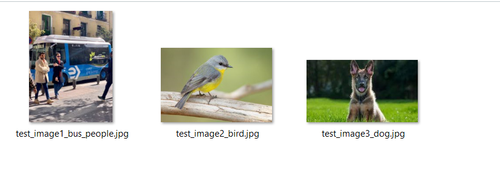
To run tests, you can use the docker_image_test.py file located in the test_images folder. Ensure that you have Python installed on your system.
|
||
|
||
|
||
```bash
|
||
python docker_image_test.py
|
||
```
|
||
|
||
The tests should produce the following output:
|
||
|
||
```JSON
|
||
Test Status: {'Test 1': 'Success', 'Test 2': 'Success', 'Test 3': 'Success'}
|
||
|
||
```
|
||
|
||
|
||
|
||
## <div align="center">Documentation</div>
|
||
|
||
See below for a quickstart installation and usage example, and see the [YOLOv8 Docs](https://docs.ultralytics.com) for full documentation on training, validation, prediction and deployment.
|
||
|
||
<details open>
|
||
<summary>Install</summary>
|
||
|
||
Pip install the ultralytics package including all [requirements](https://github.com/ultralytics/ultralytics/blob/main/pyproject.toml) in a [**Python>=3.8**](https://www.python.org/) environment with [**PyTorch>=1.8**](https://pytorch.org/get-started/locally/).
|
||
|
||
[](https://badge.fury.io/py/ultralytics) [](https://pepy.tech/project/ultralytics)
|
||
|
||
```bash
|
||
pip install ultralytics
|
||
```
|
||
|
||
For alternative installation methods including [Conda](https://anaconda.org/conda-forge/ultralytics), [Docker](https://hub.docker.com/r/ultralytics/ultralytics), and Git, please refer to the [Quickstart Guide](https://docs.ultralytics.com/quickstart).
|
||
|
||
</details>
|
||
|
||
<details open>
|
||
<summary>Usage</summary>
|
||
|
||
### CLI
|
||
|
||
YOLOv8 may be used directly in the Command Line Interface (CLI) with a `yolo` command:
|
||
|
||
```bash
|
||
yolo predict model=yolov8n.pt source='https://ultralytics.com/images/bus.jpg'
|
||
```
|
||
|
||
`yolo` can be used for a variety of tasks and modes and accepts additional arguments, i.e. `imgsz=640`. See the YOLOv8 [CLI Docs](https://docs.ultralytics.com/usage/cli) for examples.
|
||
|
||
### Python
|
||
### YOLO Model Convert to ONNX and usage
|
||
|
||
YOLOv8 may also be used directly in a Python environment, and accepts the same [arguments](https://docs.ultralytics.com/usage/cfg/) as in the CLI example above:
|
||
|
||
|
||
```python
|
||
|
||
from ultralytics import YOLO
|
||
|
||
model = YOLO('yolov8n.pt')
|
||
model.export(format='onnx')
|
||
|
||
print("Model exported to ONNX format successfully.")
|
||
|
||
# Load the YOLO model
|
||
onnx_model = YOLO(onnx_model_path, task='detect')
|
||
source = str("https://ultralytics.com/images/bus.jpg")
|
||
|
||
# Perform object detection
|
||
# results image saving
|
||
result = onnx_model(source, save=True)
|
||
|
||
```
|
||
|
||
See YOLOv8 [Python Docs](https://docs.ultralytics.com/usage/python) for more examples.
|
||
|
||
</details>
|
||
|
||
[](https://github.com/tiangolo/uvicorn-gunicorn-fastapi-docker/actions?query=workflow%3ATest) [](https://github.com/tiangolo/uvicorn-gunicorn-fastapi-docker/actions?query=workflow%3ADeploy)
|
||
|
||
|
||
# uvicorn-gunicorn-fastapi
|
||
|
||
[**Docker**](https://www.docker.com/) image with [**Uvicorn**](https://www.uvicorn.org/) managed by [**Gunicorn**](https://gunicorn.org/) for high-performance [**FastAPI**](https://fastapi.tiangolo.com/) web applications in **[Python](https://www.python.org/)** with performance auto-tuning. Optionally in a slim version or based on Alpine Linux.
|
||
|
||
**GitHub repo**: [https://github.com/tiangolo/uvicorn-gunicorn-fastapi-docker](https://github.com/tiangolo/uvicorn-gunicorn-fastapi-docker)
|
||
|
||
**Docker Hub image**: [https://hub.docker.com/r/tiangolo/uvicorn-gunicorn-fastapi/](https://hub.docker.com/r/tiangolo/uvicorn-gunicorn-fastapi/)
|
||
|
||
## Description
|
||
|
||
**FastAPI** has shown to be a Python web framework with [one of the best performances, as measured by third-party benchmarks](https://www.techempower.com/benchmarks/#section=test&runid=a979de55-980d-4721-a46f-77298b3f3923&hw=ph&test=fortune&l=zijzen-7), thanks to being based on and powered by [**Starlette**](https://www.starlette.io/).
|
||
|
||
The achievable performance is on par with (and in many cases superior to) **Go** and **Node.js** frameworks.
|
||
|
||
This image has an **auto-tuning** mechanism included to start a number of worker processes based on the available CPU cores. That way you can just add your code and get **high performance** automatically, which is useful in **simple deployments**.
|
||
|
||
## Docker
|
||
|
||
For example, your `Dockerfile` could look like:
|
||
|
||
```Dockerfile
|
||
FROM python:3.9
|
||
|
||
WORKDIR /code
|
||
|
||
COPY ./requirements.txt /code/requirements.txt
|
||
|
||
RUN pip install --no-cache-dir --upgrade -r /code/requirements.txt
|
||
|
||
COPY ./app /code/app
|
||
|
||
CMD ["uvicorn", "app.main:app", "--host", "0.0.0.0", "--port", "80"]
|
||
```
|
||
|
||
|
||
|
||
## When to Use this Docker Image
|
||
|
||
### For a Simple Application
|
||
|
||
|
||
You should consider using this Docker image if your application is sufficiently simple that you don't need to finely tune the number of processes (at least not yet), and you can simply use an automated default, and if you are running it on a single server, not a cluster.
|
||
|
||
### With Docker Compose
|
||
|
||
If you are deploying to a single server (not a cluster) using Docker Compose, and you don't have an easy way to manage replication of containers (with Docker Compose) while preserving shared network and load balancing, then you may want to use a single container with a Gunicorn process manager starting multiple Uvicorn worker processes, as provided by this Docker image.
|
||
|
||
|
||
### Other Considerations, such as Prometheus
|
||
|
||
There may be other reasons why having multiple processes within a single container is preferable to having multiple containers, each with a single process.
|
||
|
||
For instance, you might have a tool like a Prometheus exporter that needs access to all requests. If you had multiple containers, Prometheus would, by default, only retrieve metrics for one container at a time (the container that handled that specific request), rather than aggregating metrics from all replicated containers.
|
||
|
||
In such cases, it might be simpler to have one container with multiple processes, with a local tool (e.g., a Prometheus exporter) collecting Prometheus metrics for all internal processes and exposing those metrics on that single container.
|
||
|
||
---
|
||
|
||
## How to use
|
||
|
||
You don't need to clone the GitHub repo.
|
||
|
||
You can use this image as a base image for other images.
|
||
|
||
Assuming you have a file `requirements.txt`, you could have a `Dockerfile` like this:
|
||
|
||
```Dockerfile
|
||
FROM tiangolo/uvicorn-gunicorn-fastapi:python3.11
|
||
|
||
COPY ./requirements.txt /app/requirements.txt
|
||
|
||
RUN pip install --no-cache-dir --upgrade -r /app/requirements.txt
|
||
|
||
COPY ./app /app
|
||
```
|
||
|
||
It will expect a file at `/app/app/main.py`.
|
||
|
||
Or otherwise a file at `/app/main.py`.
|
||
|
||
And will expect it to contain a variable `app` with your FastAPI application.
|
||
|
||
Then you can build your image from the directory that has your `Dockerfile`, e.g:
|
||
|
||
```bash
|
||
docker build -t myimage ./
|
||
```
|
||
|
||
## Quick Start
|
||
|
||
### Build your Image
|
||
|
||
* Go to your project directory.
|
||
* Create a `Dockerfile` with:
|
||
|
||
```Dockerfile
|
||
FROM tiangolo/uvicorn-gunicorn-fastapi:python3.11
|
||
|
||
COPY ./requirements.txt /app/requirements.txt
|
||
|
||
RUN pip install --no-cache-dir --upgrade -r /app/requirements.txt
|
||
|
||
COPY ./app /app
|
||
```
|
||
|
||
* Create an `app` directory and enter in it.
|
||
* Create a `main.py` file with:
|
||
|
||
```Python
|
||
from fastapi import FastAPI
|
||
|
||
app = FastAPI()
|
||
|
||
|
||
@app.get("/")
|
||
def read_root():
|
||
return {"Hello": "World"}
|
||
|
||
|
||
@app.get("/items/{item_id}")
|
||
def read_item(item_id: int, q: str = None):
|
||
return {"item_id": item_id, "q": q}
|
||
```
|
||
|
||
* You should now have a directory structure like:
|
||
|
||
```
|
||
.
|
||
├── app
|
||
│ └── main.py
|
||
└── Dockerfile
|
||
```
|
||
|
||
* Go to the project directory (in where your `Dockerfile` is, containing your `app` directory).
|
||
* Build your FastAPI image:
|
||
|
||
```bash
|
||
docker build -t myimage_docker .
|
||
```
|
||
|
||
* Run a container based on your image:
|
||
|
||
```bash
|
||
docker run -d --name mycontainer -p 80:80 myimage_docker
|
||
```
|
||
|
||
Now you have an optimized FastAPI server in a Docker container. Auto-tuned for your current server (and number of CPU cores).
|
||
|
||
### Check
|
||
|
||
<a href="http://127.0.0.1/items/42?q=nothing" target="_blank">http://127.0.0.1/items/5?q=somequery</a>
|
||
|
||
You will see something like:
|
||
|
||
```JSON
|
||
{"item_id": 42, "q": "nothing"}
|
||
```
|
||
|
||
### Interactive API docs
|
||
|
||
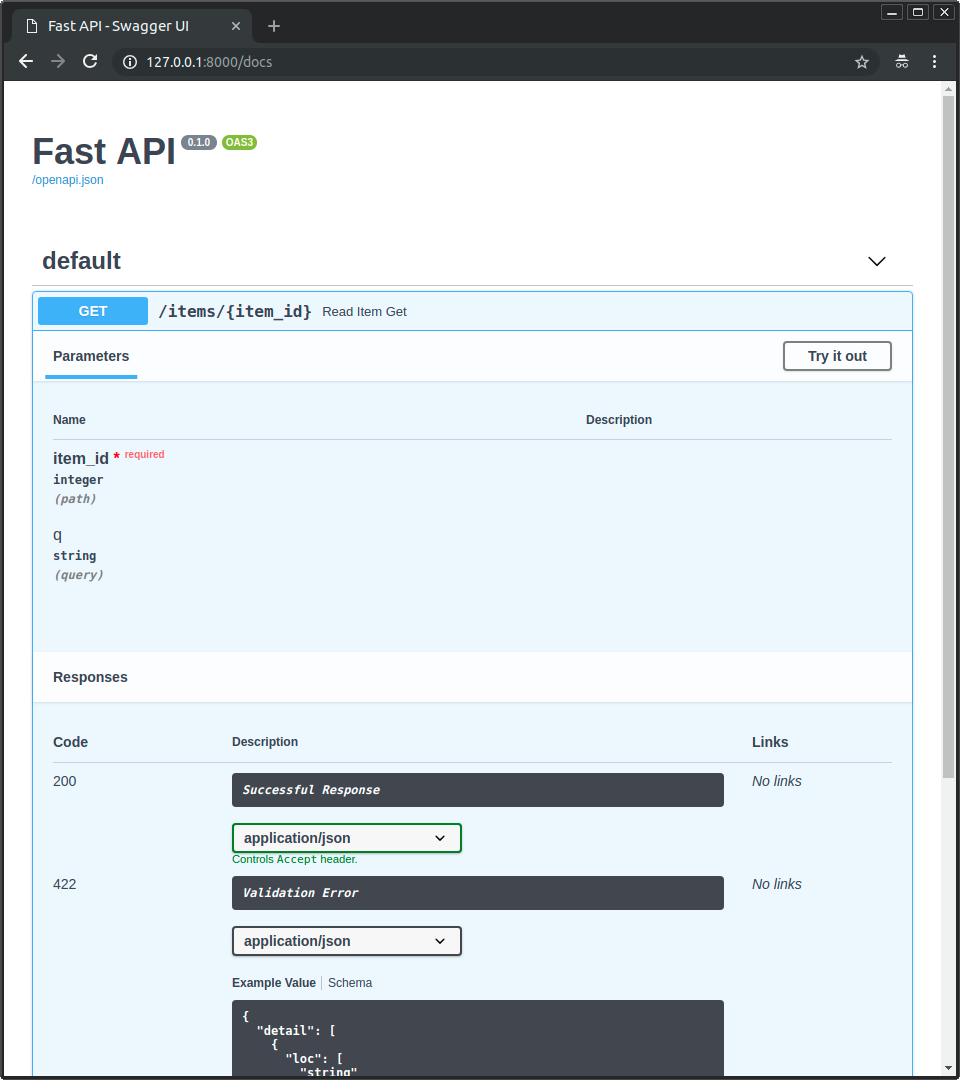
Now you can go to <a href="http://192.168.99.100/docs" target="_blank">http://192.168.99.100/docs</a> or <a href="http://127.0.0.1/docs" target="_blank">http://127.0.0.1/docs</a> (or equivalent, using your Docker host).
|
||
|
||
You will see the automatic interactive API documentation (provided by <a href="https://github.com/swagger-api/swagger-ui" target="_blank">Swagger UI</a>):
|
||
|
||
|
||
|
||
|
||
|
||
## Advanced usage
|
||
|
||
### Environment variables
|
||
|
||
These are the environment variables that you can set in the container to configure it and their default values:
|
||
|
||
#### `MODULE_NAME`
|
||
|
||
The Python "module" (file) to be imported by Gunicorn, this module would contain the actual application in a variable.
|
||
|
||
By default:
|
||
|
||
* `app.main` if there's a file `/app/app/main.py` or
|
||
* `main` if there's a file `/app/main.py`
|
||
|
||
For example, if your main file was at `/app/custom_app/custom_main.py`, you could set it like:
|
||
|
||
```bash
|
||
docker run -d -p 80:80 -e MODULE_NAME="custom_app.custom_main" myimage
|
||
```
|
||
|
||
#### `VARIABLE_NAME`
|
||
|
||
The variable inside of the Python module that contains the FastAPI application.
|
||
|
||
By default:
|
||
|
||
* `app`
|
||
|
||
For example, if your main Python file has something like:
|
||
|
||
```Python
|
||
from fastapi import FastAPI
|
||
|
||
api = FastAPI()
|
||
|
||
|
||
@api.get("/")
|
||
def read_root():
|
||
return {"Hello": "World"}
|
||
```
|
||
|
||
In this case `api` would be the variable with the FastAPI application. You could set it like:
|
||
|
||
```bash
|
||
docker run -d -p 80:80 -e VARIABLE_NAME="api" myimage
|
||
```
|
||
|
||
#### `APP_MODULE`
|
||
|
||
The string with the Python module and the variable name passed to Gunicorn.
|
||
|
||
By default, set based on the variables `MODULE_NAME` and `VARIABLE_NAME`:
|
||
|
||
* `app.main:app` or
|
||
* `main:app`
|
||
|
||
You can set it like:
|
||
|
||
```bash
|
||
docker run -d -p 80:80 -e APP_MODULE="custom_app.custom_main:api" myimage
|
||
```
|
||
|
||
#### `GUNICORN_CONF`
|
||
|
||
The path to a Gunicorn Python configuration file.
|
||
|
||
By default:
|
||
|
||
* `/app/gunicorn_conf.py` if it exists
|
||
* `/app/app/gunicorn_conf.py` if it exists
|
||
* `/gunicorn_conf.py` (the included default)
|
||
|
||
You can set it like:
|
||
|
||
```bash
|
||
docker run -d -p 80:80 -e GUNICORN_CONF="/app/custom_gunicorn_conf.py" myimage
|
||
```
|
||
|
||
You can use the [config file from the base image](https://github.com/tiangolo/uvicorn-gunicorn-docker/blob/master/docker-images/gunicorn_conf.py) as a starting point for yours.
|
||
|
||
#### `WORKERS_PER_CORE`
|
||
|
||
This image will check how many CPU cores are available in the current server running your container.
|
||
|
||
It will set the number of workers to the number of CPU cores multiplied by this value.
|
||
|
||
By default:
|
||
|
||
* `1`
|
||
|
||
You can set it like:
|
||
|
||
```bash
|
||
docker run -d -p 80:80 -e WORKERS_PER_CORE="3" myimage
|
||
```
|
||
|
||
If you used the value `3` in a server with 2 CPU cores, it would run 6 worker processes.
|
||
|
||
You can use floating point values too.
|
||
|
||
So, for example, if you have a big server (let's say, with 8 CPU cores) running several applications, and you have a FastAPI application that you know won't need high performance. And you don't want to waste server resources. You could make it use `0.5` workers per CPU core. For example:
|
||
|
||
```bash
|
||
docker run -d -p 80:80 -e WORKERS_PER_CORE="0.5" myimage
|
||
```
|
||
|
||
In a server with 8 CPU cores, this would make it start only 4 worker processes.
|
||
|
||
**Note**: By default, if `WORKERS_PER_CORE` is `1` and the server has only 1 CPU core, instead of starting 1 single worker, it will start 2. This is to avoid bad performance and blocking applications (server application) on small machines (server machine/cloud/etc). This can be overridden using `WEB_CONCURRENCY`.
|
||
|
||
#### `MAX_WORKERS`
|
||
|
||
Set the maximum number of workers to use.
|
||
|
||
You can use it to let the image compute the number of workers automatically but making sure it's limited to a maximum.
|
||
|
||
This can be useful, for example, if each worker uses a database connection and your database has a maximum limit of open connections.
|
||
|
||
By default it's not set, meaning that it's unlimited.
|
||
|
||
You can set it like:
|
||
|
||
```bash
|
||
docker run -d -p 80:80 -e MAX_WORKERS="24" myimage
|
||
```
|
||
|
||
This would make the image start at most 24 workers, independent of how many CPU cores are available in the server.
|
||
|
||
#### `WEB_CONCURRENCY`
|
||
|
||
Override the automatic definition of number of workers.
|
||
|
||
By default:
|
||
|
||
* Set to the number of CPU cores in the current server multiplied by the environment variable `WORKERS_PER_CORE`. So, in a server with 2 cores, by default it will be set to `2`.
|
||
|
||
You can set it like:
|
||
|
||
```bash
|
||
docker run -d -p 80:80 -e WEB_CONCURRENCY="2" myimage
|
||
```
|
||
|
||
This would make the image start 2 worker processes, independent of how many CPU cores are available in the server.
|
||
|
||
#### `HOST`
|
||
|
||
The "host" used by Gunicorn, the IP where Gunicorn will listen for requests.
|
||
|
||
It is the host inside of the container.
|
||
|
||
So, for example, if you set this variable to `127.0.0.1`, it will only be available inside the container, not in the host running it.
|
||
|
||
It's is provided for completeness, but you probably shouldn't change it.
|
||
|
||
By default:
|
||
|
||
* `0.0.0.0`
|
||
|
||
#### `PORT`
|
||
|
||
The port the container should listen on.
|
||
|
||
If you are running your container in a restrictive environment that forces you to use some specific port (like `8080`) you can set it with this variable.
|
||
|
||
By default:
|
||
|
||
* `80`
|
||
|
||
You can set it like:
|
||
|
||
```bash
|
||
docker run -d -p 80:8080 -e PORT="8080" myimage
|
||
```
|
||
|
||
#### `BIND`
|
||
|
||
The actual host and port passed to Gunicorn.
|
||
|
||
By default, set based on the variables `HOST` and `PORT`.
|
||
|
||
So, if you didn't change anything, it will be set by default to:
|
||
|
||
* `0.0.0.0:80`
|
||
|
||
You can set it like:
|
||
|
||
```bash
|
||
docker run -d -p 80:8080 -e BIND="0.0.0.0:8080" myimage
|
||
```
|
||
|
||
#### `LOG_LEVEL`
|
||
|
||
The log level for Gunicorn.
|
||
|
||
One of:
|
||
|
||
* `debug`
|
||
* `info`
|
||
* `warning`
|
||
* `error`
|
||
* `critical`
|
||
|
||
By default, set to `info`.
|
||
|
||
If you need to squeeze more performance sacrificing logging, set it to `warning`, for example:
|
||
|
||
You can set it like:
|
||
|
||
```bash
|
||
docker run -d -p 80:8080 -e LOG_LEVEL="warning" myimage
|
||
```
|
||
|
||
#### `WORKER_CLASS`
|
||
|
||
The class to be used by Gunicorn for the workers.
|
||
|
||
By default, set to `uvicorn.workers.UvicornWorker`.
|
||
|
||
The fact that it uses Uvicorn is what allows using ASGI frameworks like FastAPI, and that is also what provides the maximum performance.
|
||
|
||
You probably shouldn't change it.
|
||
|
||
But if for some reason you need to use the alternative Uvicorn worker: `uvicorn.workers.UvicornH11Worker` you can set it with this environment variable.
|
||
|
||
You can set it like:
|
||
|
||
```bash
|
||
docker run -d -p 80:8080 -e WORKER_CLASS="uvicorn.workers.UvicornH11Worker" myimage
|
||
```
|
||
|
||
#### `TIMEOUT`
|
||
|
||
Workers silent for more than this many seconds are killed and restarted.
|
||
|
||
Read more about it in the [Gunicorn docs: timeout](https://docs.gunicorn.org/en/stable/settings.html#timeout).
|
||
|
||
By default, set to `120`.
|
||
|
||
Notice that Uvicorn and ASGI frameworks like FastAPI are async, not sync. So it's probably safe to have higher timeouts than for sync workers.
|
||
|
||
You can set it like:
|
||
|
||
```bash
|
||
docker run -d -p 80:8080 -e TIMEOUT="20" myimage
|
||
```
|
||
|
||
#### `KEEP_ALIVE`
|
||
|
||
The number of seconds to wait for requests on a Keep-Alive connection.
|
||
|
||
Read more about it in the [Gunicorn docs: keepalive](https://docs.gunicorn.org/en/stable/settings.html#keepalive).
|
||
|
||
By default, set to `2`.
|
||
|
||
You can set it like:
|
||
|
||
```bash
|
||
docker run -d -p 80:8080 -e KEEP_ALIVE="20" myimage
|
||
```
|
||
|
||
#### `GRACEFUL_TIMEOUT`
|
||
|
||
Timeout for graceful workers restart.
|
||
|
||
Read more about it in the [Gunicorn docs: graceful-timeout](https://docs.gunicorn.org/en/stable/settings.html#graceful-timeout).
|
||
|
||
By default, set to `120`.
|
||
|
||
You can set it like:
|
||
|
||
```bash
|
||
docker run -d -p 80:8080 -e GRACEFUL_TIMEOUT="20" myimage
|
||
```
|
||
|
||
#### `ACCESS_LOG`
|
||
|
||
The access log file to write to.
|
||
|
||
By default `"-"`, which means stdout (print in the Docker logs).
|
||
|
||
If you want to disable `ACCESS_LOG`, set it to an empty value.
|
||
|
||
For example, you could disable it with:
|
||
|
||
```bash
|
||
docker run -d -p 80:8080 -e ACCESS_LOG= myimage
|
||
```
|
||
|
||
#### `ERROR_LOG`
|
||
|
||
The error log file to write to.
|
||
|
||
By default `"-"`, which means stderr (print in the Docker logs).
|
||
|
||
If you want to disable `ERROR_LOG`, set it to an empty value.
|
||
|
||
For example, you could disable it with:
|
||
|
||
```bash
|
||
docker run -d -p 80:8080 -e ERROR_LOG= myimage
|
||
```
|
||
|
||
#### `GUNICORN_CMD_ARGS`
|
||
|
||
Any additional command line settings for Gunicorn can be passed in the `GUNICORN_CMD_ARGS` environment variable.
|
||
|
||
Read more about it in the [Gunicorn docs: Settings](https://docs.gunicorn.org/en/stable/settings.html#settings).
|
||
|
||
These settings will have precedence over the other environment variables and any Gunicorn config file.
|
||
|
||
For example, if you have a custom TLS/SSL certificate that you want to use, you could copy them to the Docker image or mount them in the container, and set [`--keyfile` and `--certfile`](http://docs.gunicorn.org/en/latest/settings.html#ssl) to the location of the files, for example:
|
||
|
||
```bash
|
||
docker run -d -p 80:8080 -e GUNICORN_CMD_ARGS="--keyfile=/secrets/key.pem --certfile=/secrets/cert.pem" -e PORT=443 myimage
|
||
```
|
||
|
||
**Note**: instead of handling TLS/SSL yourself and configuring it in the container, it's recommended to use a "TLS Termination Proxy" like [Traefik](https://docs.traefik.io/). You can read more about it in the [FastAPI documentation about HTTPS](https://fastapi.tiangolo.com/deployment/#https).
|
||
|
||
#### `PRE_START_PATH`
|
||
|
||
The path where to find the pre-start script.
|
||
|
||
By default, set to `/app/prestart.sh`.
|
||
|
||
You can set it like:
|
||
|
||
```bash
|
||
docker run -d -p 80:8080 -e PRE_START_PATH="/custom/script.sh" myimage
|
||
```
|
||
|
||
|
||
## Alpine Python Warning
|
||
|
||
In summary, it's generally recommended to avoid using Alpine for Python projects and opt for the `slim` Docker image versions instead.
|
||
|
||
---
|
||
|
||
|
||
While Alpine Linux is often praised for its lightweight nature, it may not be the best choice for Python projects. Unlike languages like Go, where you can build a static binary and copy it to a simple Alpine image, Python's reliance on specific tooling for building extensions can cause complications.
|
||
|
||
When installing Python packages in Alpine, you may encounter difficulties due to the lack of precompiled installable packages ("wheels"). This often leads to installing additional tooling and building dependencies, resulting in an image size comparable to, or sometimes even larger than, using a standard Python image based on Debian.
|
||
|
||
Using Alpine for Python images can also significantly increase build times and resource consumption. Building dependencies takes longer, requiring more CPU time and energy for each build, ultimately increasing the carbon footprint of the project.
|
||
|
||
For those seeking slim Python images, it's advisable to consider using the "slim" versions based on Debian. These images offer a balance between size and usability, providing a more efficient solution for Python development.
|
||
|
||
|
||
|
||
## Sources
|
||
|
||
https://github.com/tiangolo/uvicorn-gunicorn-fastapi-docker/blob/master/README.md
|